New blogger feature: Create mobile template on a click

blogger mobile
Blogger is coming out with tons of new features making blogging plus blogger more efficient for its users. Its just a week ago blogger added Feed control feature and now blogger has added another amazing feature that is meant for every blogger specially who focus on mobile web.
Blogger has added Mobile Template feature which will automatically create a mobile version of your blog automatically on a single click. You can see my blog’s mobile version below.


This feature is currently available in draft.blogger only. Soon it will be available on basic blogger accounts.To create your own mobile version login to draft.blogger just go to Dashboard>>Settings>>Email & Mobile and click the option shown in the image below. Also click the Mobile Preview button to see the mobile version of your blog.
Picture 20
Save the changes and its done. Currently there are now styling options for third party blogger template but styling options are available for template designed through template designer. For more details visit Bloggerindraft.


also click here to check my blog in  mobile version

New feed control feature in blogger

ddgs
This is a really cool feature that blogger launched yesterday. This allows you to control the length of the feed post. Now you can change the post length of any feed post just by using a simple feature that blogger earlier launched called “JUMP BREAKS”.

untitled
This “Until Jump Break” will hide the feed post to that point where you cut off the post on the homepage by using the Jump break option from the post editor .
If you have email delivery option enabled for your blog then by using this option you can deliver only that portion of the post which you want to be delivered.If readers want to see the full post, they can click the “read more” link and they’ll be directed to your blog. This means you have full control over your feed.

Facebook's Profile Redesign

Facebook the world no 2 website now bring some thigh new and interesting. Facebook's new take on the profile page allows you to personalize and highlight the important parts of your life, while still maintaining Facebook's clean, simplified look. The tabs at the top of each profile page are gone, and have been replaced with links on the left side of the page.Simply click on Facebook’s announcement to activate yours and check out all the new features, including revamped personal info, more prominent pictures, top interests showcased as images, more descriptive relationships and more.
Check out Facebook’s video and our walkthrough below:


The New Profile

If you haven't got the new Facebook profile yet, you can activate it by clicking here. Otherwise, let's jump in and walk through Facebook's new profile features.

Facebook Biography


Across the top of your profile in the main column is a list of your basic information based on what used to be under the "Info" tab in the old Facebook profile layout. This section includes items such as your current job, where you went to school, where you live, your marital status, languages you speak, your hometown, and your birthdate. Any of this information can be removed from your profile by clicking the "Edit Profile" button on the top right side of your profile page.

Thumbnail Photo Strip

Below your bio information is a thumbnail strip of five photos you were recently tagged in. If you don't like the photos you see in your strip you can hover over each photo and click the "x" in the top right corner to hide it. It will then be replaced with another photo. (Clicking on the thumbnail takes you to the Photos section of Facebook, so you can see where -- or who -- the photo came from.)
You can't specify which photos you'd like to see in your thumbnail strip, so you'll have to cycle through your photos by clicking the "x" to get the photos you want.
 It's also important to note that the thumbnail strip is governed by your photo privacy settings. In other words, only the people who can see your photos will be able to see the thumbnails on your profile.

Streamlined Facebook Navigation

The new profile page removes the tabs that used to be at the top of your page, and moves them to navigation links on the left side of the page. This is very similar to how the current Facebook newsfeed page works.
You'll also notice that you can't highlight your favorite third-party applications by giving a featured link on your profile page as you could before with tabbed profiles.

A “Suggest Friends” button also appear in the top right corner of the profiles of users with few friends.
Gone are sections beneath the profile picture displaying a user’s most recently updated photo albums and shared Links. The About Me section, Likes, and a user’s website URLs have been moved to a new location within the Info navigation link. This decreases the prominence of explicit self expression, and reduces the likelihood that a user’s friends follow their links to blogs or profiles on other web services.
Users could previously highlight their upcoming Events, shared Links, and uploaded Videos by creating profile tabs for those categories. There appears to be no way to view all of a friend’s RSVPs or shared Links in the redesign. The link to a user’s tagged videos that used to be below the profile picture has been removed, and the only way to view these or their other uploaded videos is through links obscured inside the Photos navigation link.

Featured Relationships


Below the navigation links, your Facebook friends are grouped by their importance to you, which Facebook calls "featured relationships." For the most part, featured relationships are lists of people you create based on the Facebook friends you want to highlight. You could, for example, create a list of teammates or Facebook friends your grew up or went to college with.
By default, the top spot is automatically reserved for your significant other (boyfriend, girlfriend, wife, husband), and followed by your Facebook friends, your family, and any lists you create.
To change the order of these lists or to add new lists, click on the pencil icon that appears in the top right corner when you hover over each list. You can also click on "Edit Profile" in the top right corner of your profile page and on the next page select the "Relationships" link on the left.

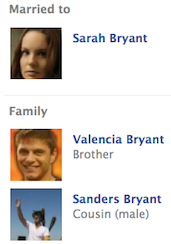
If users add relationships with family members, such as two users confirming that they are brothers, this automatically creates a “Family” section at the bottom of the Featured Relationships pane of the profile.Featured Relationships is similar to MySpace’s “Top 8″ feature which lets users show off their best friends. While useful for learning about who are the important people in someone’s life, Featured Relationships could cause drama for users who might be guilted or coerced into adding family members, significant others, or other friends.

Education and Work

.Below the thumbnail strip of highlighted photos is a section for your work and education experience that is fairly similar to how it looked before. The big difference is that now you can add fellow co-workers to your past and present employers. You can also list major projects you worked on during your tenure at each job. Facebook Software Engineer Josh Wiseman, for example, has listed that he most recently worked on the Facebook Profile revamp with seven other Facebook employees.

Under education, you can add a list of courses you took at school and who among your Facebook friends took those classes with you. Facebook CEO Mark Zuckerberg notes on his profile that he took CS161.Operating Systems at Harvard with two of his Facebook friends. In my tests, Facebook does not have access to course calendars, so it will be up to you to give the classes you want to add a specific title.

Likes and Interests

Below your work and education experience are lists of your interests such as your favorite movies, television shows, and books.

Your favorite quotes have been moved under a new section called "Philosophy." Facebook has also added a sports section where you can add sports you play and who among your Facebook friends you play with. You can also add your favorite professional sports teams and your favorite professional athletes.
Beyond the new sections, your profile page is rounded out with your miscellaneous likes and interests and your contact information.
Facebook says its new profile design will roll out over the next few weeks, and everyone should have it by early next year. If you can't wait for it to roll out to you, click here to get the new Facebook profile now.

Most silly bug in Window calculator ? 2-2 !=0 ?

 If you subtract 2 from the square root of 4 then the result is not 0 but -1.068281969439142e-19. Interesting is previously in windows XP the result was -8.1648465955514287168521180122928e-39. So that’s an update in Seven right ?

Step 1 : Open Windows Calculator.
Step 2 : Press the number 4 and apply Square root which gives result 2.
Step 3 : Now subtract 2 from the answer ie, 2-2 and press equals [=]
Shocking bug right ?
I learned that 2 – 2 = 0 but windows calculator has some different suggestion
What does this mean ?? Buggy Calculator all the way…
Obviously this is a simple bug in the coding. This bug is not present on any other calculator like online calculator etc. So it a bug in Microsoft windows calculator which they have overlooked for may years.
Thanks to snaphow

How to Invite ALL Facebook Friends to a Event or Page

When you are trying to invite your friends to your page, it can be tedious. So here's a quick javascript to select all your friends in Facebook so you can invite them all in one quick motion.


          javaScript code to select all friends to invite all

  1. Go to your Event or page and click “Invite People”.
  2. Once the page has loaded you should see all of your friends, but they are not selected.
  3. At this point, copy and paste the javascript code below into your Web browser’s address bar, then hit “Enter”.
  4. If all goes well, it selects all of your friends!


Simply copy and paste that into the address bar when you have the friend selector window open.
If that first method doesn’t work for you give this a try:
javascript: fs.select_all()
If that second method doesn’t work give this a try:
javascript:elms=document.getElementById('friends').getElementsByTagName('li');for(var fid in elms){if(typeof elms[fid] === 'object'){fs.click(elms[fid]);}}

Google chrome extension
Otherwise you can use the chrome extension (link) which adds a "Toggle all" friends button to facebook groups, events, and pages invite boxes, which lets you select all of your friends in one click.

Open all external links on new page

externa
This is a really cool hack which will make all the external links to open in new tab or new window. It is based on JavaScript and is really easy to implement.

Why use it?
  • Prevent typing “target=’_blank’” again and again for external links
  • Lets users to see the outside links while staying on your site.
  • If there are some links which don’t have “target=’_blank’” in there tag, then this script will also open them on new page.
Installation
Find the tag in your blogger template code by using ctrl+F and place the below code above it.
Also replace www.yourblog.blogspot.com and yourblog.blogspot.com with your blog’s address.
Save your template and its done.