Showing posts with label internet explorer. Show all posts

Internet Explorer losing ground


The world’s most-used internet browser, Microsoft’s Internet Explorer, is on a steady decline in India, reveals a study by Irish
metrics firm StatCounter. IE, as it’s known, has lost almost 20% market share in India in the past two years, even as Google’s Chrome and Mozilla’s Firefox make great strides.

According to StatCounter, the percentage of PCs running Internet Explorer in India dropped from close to 70% in 2008 to about 51%, currently . The drop was despite an absence of any regulation by a trade commission , unlike that mandated by European Union on Microsoft, this year.In Europe, Internet Explorer lost three times more share this month than usual in some European countries since the company was forced to mandate a ballot screen by EU in its Windows 7 operating system.

The ballot screen offers a choice between Mozilla’s Firefox, Google’s Chrome, Apple’s Safari, Opera and others, by displaying icons of rival browsers.

Worldwide, Internet Explorer’s market share has suddenly started dipping, and rivals Chrome’s and Firefox’s rising, from this month, following the EU regulation. Worldwide IE has a market share of about 55% followed by Firefox’s 31%, Chrome at 7% and Safari at about 4% currently.

Capturing flash files to your system in easy steps

How many times have you come across a beautiful flash greeting card or a flash animated file on the internet? Lately many online gaming sites also use Flash to make their games more interactive and user friendly. Did you know you can download theseflash files on your computer very easily. If you use internet explorer or firefox or opera, here is a simple method that does the trick..

For Internet Explorer users: (also for Opera users)
1. Play the complete flash file online.
2. Under 'Tools' menu go to 'Internet Option' and then 'General' Tab click the Settings button available in the Temporary Internet Files group
3. Here click the Settings button available in the temporary internet files group.
4. And now click view files to open your temporary internet files folder. Every file you opened through your browser is save here (by default)
5. Click View - Details. now click view - Arrange icons by - internet address. Depending upon the webpage, there could one or more Flash files (Shockwave Flash Object) under the mentioned internet address.
6. Once you find the right flash file, right-click and choose Copy. Then paste the swf file in any other directory.
7. So this files can be opened by your browser offline as well

For Fiefox users:
1. Play the complete flash file online.
2. On your Firefox go to 'Tools' >> Page Info and go to 'Media Tab' on the page info windows
3. The media tab has a complete list (with preview) of Images, Shockwave Flash files that were downloaded by the Firefox browser.
4. Scroll down the list and locate your required swf file.
5. Click the "Save As" button to save the file on our system.
6. So this files can be opened by your browser offline as well
7. Firefox extentions are available to make this procedure even simpler

So next time you come across a interesting flash file online and want to download it, follow this simple steps and there you have the file.

нσω тσ ѕυяƒ тнє ωєв єνєη ιƒ ιηтєяηєт єχρℓσяєя ιѕ ∂ιѕαвℓє∂


Ever find yourself sitting in front of a computer that’s been locked down by an overzealous IT administrator who won’t let you install any software or even open Internet Explorer or Firefox? If that PC is running Windows XP, there’s a good chance you can still visit coolaery.co.nr (or other sites if that sort of thing appeals to you).
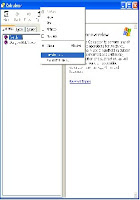
All you have to do is launch a Windows application like Calculator, and then click the Help button. Under Help, click “Help Topics,” which will bring up a help window. Next, all you have to do is right click on the title bar and select “Jump To URL.” Now you can type in any web address you like, but make sure to include “http://” at the beginning. Basically what you’re looking at is Internet Explorer 6 inside a help window, but this version of the program isn’t quite as smart as IE6. It won’t automatically add the http:// for you. And of course, there’s no bookmarking feature.

нσω тσ вℓσ¢к α ωєвѕιтє

There are many reason why you need to know how to block a website. Some of the most common reasons are you have been targeted by spammers who use adware and popups to attack your PC. Other reasons may be to prevent your children from having access to certain site content such as porn and gambling.


How to block a Website using Internet Explorer

Internet Explorer version 5 and later offer the ability for heighten security and privacy. You can block a site by following the directions below:

1. Load your Internet explorer
2. Click Tools
3. Click Internet Options
4. Click the Privacy tab
5. Under the Privacy window, Click Sites
6. Type in the site address that you want to Block and Click OK. Remember this technique only blocks on one site at a time. Parental control software will allow you to block multiple sites and categories.

Block a website step 1

block a website step 2


Here are alternate instructions to block a website using Internet Explorer.
Tools ->Internet Options->Security->Restricted sites->Sites->Type in the site address and Click ADD then click OK

How to Block A Website in All Web Browsers

In Windows XP

1. GO TO RUN COMMAND


2. Type: notepad C:/Windows/System32/drivers/etc/hosts
3. Locate the line 127.0.0.1 localhost
4. To block the website google.com for example, just add this text under 127.0.0.1 localhost:

127.0.0.1 google.com
127.0.0.1 www.google.com

You can add as many sites any site, However you will need to prefix it with "127.0.0.1".

5. Save the file
Google will now be blocked in all web browser. This is an advanced but easy method on how to blow a website.

block a website step 4