Showing posts with label tips n tricks. Show all posts

All the World Newspapers on a Single Page


When news breaks in some part of the world, you are often curious to know what the local newspapers of that country have to say on that event. The question is how do you find all the good news outlets of that region?

Enter Newspaper Map, a comprehensive catalogue of all the prominent newspapers of the world arranged on a Google Map. You can zoom-in to any region of the map, or use the search feature, to see the names all of the major newspapers that are published from a particular region.

The various pins on the newspaper map point you to the actual website of the corresponding newspaper, their color indicates the newspaper language and everything is neatly integrated with Google Translate thus helping you read any foreign newspaper in your own native language.

If you find the number of pins as overwhelming, there’s a setting to show just the ‘major’ newspapers and hide the local dailies. The search box has auto-complete s

There are alternative sites like Kiosko and Newseum that display the current front page of newspapers from around the world but Newspaper Map is a bit different – their collection is much bigger, you can find newspapers by region and it works on your mobile too.

Turn your Facebook Profile into a Virtual Museum

Intel’s Museum of Me is a brilliant online app that turns your Facebook profile into a virtual museum with the click of a button.
Simply authorize the Museum of Me app to access your Facebook profile and it will pull your photographs, pictures of friends you frequently interact with, your location and other data that you may have shared on Facebook and turns everything into an impressive animated movie.
This is much like taking a walking tour of a virtual museum where all the rooms and galleries display exhibits that are you own.

If you have a Facebook profile, this is something you should not miss.

How to protect your account from Phishing attacks


Phishing is a form of social engineering technique used by hackers to gather sensitive information such as usernames, passwords and credit card details by posing as a trustworty person/organization. Since most online users are unaware of the techniques used in carrying out a phishing attack, they often fall victims and hence, phishing can be very effective.
With the dramatic increase in the number of phishing scams in the recent years, there has also been a steady rise in the number of people being victimized. Lack of awareness among the people is the prime reason behind such attacks. This article will try to create awareness and educate the users about such online scams and frauds.
Phishing scams usually sends an email message to users requesting for their personal information, or redirects them to a website where they are required to enter thier personal information. Here are some of the tips that can be used to identify various phishing techniques and stay away from it.

Identifying a Phishing Scam

 
1. Beware of emails that demand for an urgent response from your side. Some of the examples are:
  • You may receive an email which appears to have come from your bank or financial organization stating that “your bank account is limited due to an unauthorized activity. Please verify your account asap so as to avoid permanant suspension”. In most cases, you are requested to follow a link (URL) that takes you to spoofed webpage (similar to your bank website) and enter your login details over there.
  • In some cases, phishing emails may ask you to make a phone call. There may be a person or an audio response waiting on the other side of the phone to take away your credit cards details, account number, social security number or other valuable data.
2. Phishing emails are generally not personalized. Since they target a lagre number of online users, they usually use generalized texts like “Dear valued customer”, “Dear Paypal user” etc. to address you. However, some phishing emails can be an exception to this rule.
3. When you click on the links contained in a phishing email, you will most likely be taken to a spoofed webpage with official logos and information that looks exactly same as that of the original webpages of your bank or financial organization. Pay attention to the URL of a website before you enter any of your personal information over there. Even though malicious websites look identical to the legitimate site, it often uses a different domain or variation in the spelling. For example, instead of paypal.com, a phishing website may use different addresses such as:
  • papyal.com
  • paypal.org
  • verify-paypal.com
  • xyz.com/paypal/verify-account/
 

Tips to Avoid Being a Victim of Phishing

 
1. Do not respond to suspicious emails that ask you to give your personal information. If you are unsure whether an email request is legitimate, verify the same by calling the respective bank/company. Always use the telephone numbers printed on your bank records or statements and not those mentioned in the suspicious email.
2. Don’t use the links in an email, instant messenger or chat conversation to enter a website. Instead, always type the URL of the website on your browser’s address bar to get into a website.
3. Legitimate websites always use a secure connection (https://) on those pages which are intended to gather sensitive data such as usernames and passwords, account numbers or credic card details. You will see a lock icon Picture of the Lock icon in your browser’s address bar which indicates a secure connection. On some websites like paypal.com which uses an extended validation certificate, the address bar turns GREEN as shown below.
HTTPS Address Bar


In most cases, unlike a legitimate website, a phishing website or a spoofed webpage will not use a secure connection and does not show up the lock icon. So, absence of such security features can be a clear indication of phishing attack. Always double-check the security features of the webpage before entering any of your personal information.
4. Always use a good antivirus software, firewall and email filters to filter the unwanted traffic. Also ensure that your browser is up-to-date with the necessary patches being applied.
5. Report a “phishing attack” or “spoofed emails” to the following groups so as to stop such attacks from spreading all over the Internet:
You can directly send an email to spam@uce.gov orreportphishing@antiphishing.org reporting an attack. You can also notify the Internet Crime Complaint Center of the FBI by filing a complaint on their website: www.ic3.gov.

How to run Firefox inside Firefox?


Heya!!!
You know guys, firefox is my favourite browser. and today again a have a new funny trick of firefox...

Run Firefox inside Firefox

it sounds good na, that how we can do it...

And its really easy too just type in this url in Firefox's address bar and there you go!
Firefox inside Firefox!

copy paste following url in a web browser (mozilla firefox).


chrome://browser/content/browser.xul


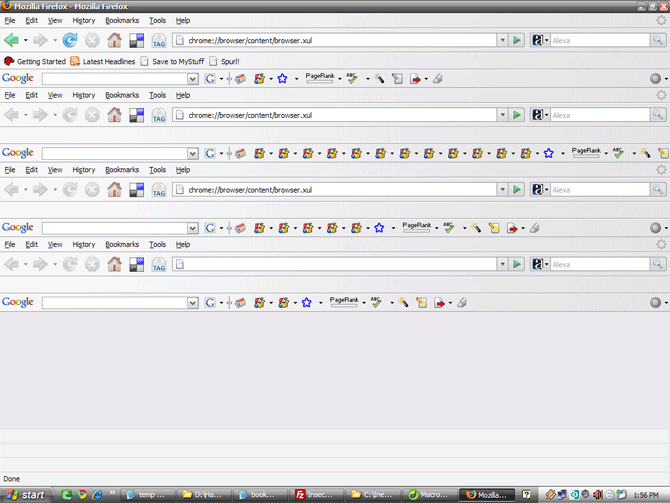
Following is the screenshot of this trick (firefox in firefox in firefox, which is again in another firefox)-


Follow By Email Gadget for Blogger

Many blog readers prefer to receive updates of new posts by email (rather than subscribing in an RSS feed reader). To make it even easier for our readers to stay in touch with our sites, the Blogger Team have developed a new, official gadget: Follow by Email.Recently Blogger has added a new Gadget/Widget to its ever improving list of blogger gadgets. They call it Follow By Email

To add this Gadget, Follow these simple steps

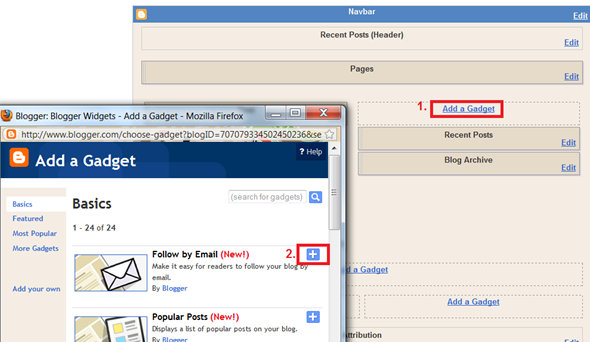
1. Login to your Blogger Dashboard, Navigate to Design Page Elements tab and click on the “Add a Gadget” Link
2.On the next window click on the plus sign, and you will be taken to the gadget options page.
3. Click the save Button and you are done.

You are done now!! :) Wasn’t that simple?

Blogger introduce Different views to present your content


Blogger now offers you the ability to present your content in several new and exciting ways.

These dynamic views will work on your blog if all of the following are true:


  • Your blog is public. Your readers don’t need to sign in to view your blog.


  • Your blog has feeds fully enabled. In the Settings | Site feed tab, you have enabled either Full or Jump Break for your Post Feed.


  • You have not disabled dynamic views. In the Setting | Formatting tab, the option for Enable Dynamic Views is set to Yes.


  • If any of the above conditions are not true, users who attempt to access dynamic views for your blog will instead be taken to a landing page and redirected to your original blog in a few seconds.
    If all of the above conditions are true, your readers can access the dynamic views for your blog by simply appending /view to the URL. 
    for ex check out the different views of technowit

    1. sidebar
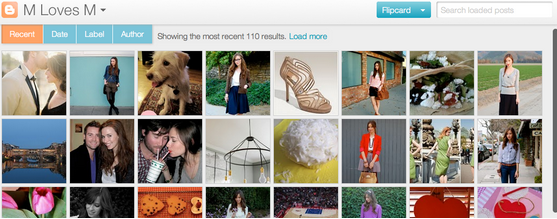
    2. flipcard
    3. mosaic
    4. snapshot
    5. timeslide
    check out this video tutorial

    orkut introduce like feature


    The Orkut blog just announced that they have added a new “like” button in Orkut that will help you quickly react to your friends’ stories through smileys.
    Unlike Facebook where pressing the Like button mostly means that you have really liked the story, Orkut’s implementation of the Like feature is much more complex (and ugly) offering users a whole range of emotions.

    What’s New With Blogger


    blogger
    Earlier in 2010 Blogger has added to many new features like new Template designer ( enables to create templates without any knowledge of HTML/CSS ), different fonts where added, stats option,comments filtering etc.

    And now in 2011 blogger has previewed some of the features on http://buzz.blogger.com/that will be launched. Some of  these features which blogger has allowed its users to sneak peak are:-
    1. New look of dashboard – See the screenshot of new blogger dashboard
    [Open in new window to see a large view]
    2. New post editor -
     
    [Open in new window to see a large view]
    See this video to have a better idea

    Magic of VLC Player

    Hello all the readers of Technowit wish you a  HAPPY HOLI. Today i am going to share a funny magic of vlc player hope u all guys enjoy this trick.

    VLC media player has an amusing ability, to playback movies in ASCII art. so if you want to play videos in ASCII format just to do the following steps.

    1.open vlc palyer

    2.click on TOOLs

    3.under tools section go to Preferences(Tools>Preferences)

    4.Open the section “Video” section 


    5.under “Output” select “Color ASCII art video output” from the drop down menu


    Save it. Now play any video file to enjoy the ASCII art.

    hope u all guys enjoy this trick.
    also share it with your friends.


    Disable Theater Effect of Facebook Photos on Any Browser


    Recently, Facebook added Ajax based Theater Effect on photos to show them (photo viewer) in a new style. The style is similar to the Flickr slideshow but there are many people who still wants to browse photos in old style on Facebook. If you are one of them, then here are few ways to disable Facebook photo Theater Effect or Viewer.
    Facebook Photo with Theater Effect i.e. on Theater Viewer
    Facebook Photo on Old Viewer

    How to disable Facebook Photos Theater Viewer

    1. Remove &theater from URL – Once you click on a photo on Facebook, a new page will open where you can see &theater in the URL i.e. web address. Just remove that part from the URL and hit enter. You can now see the old Facebook photo viewer.
    2. Hit F5 to Refresh the Facebook page – Very simple technique. Once the photo is opened in theater viewer, hit F5 on your keyboard. The page will load and will open the photo in old viewer.
    3. Use Firefox Userscript – Mozilla Firefox users are having benefits of add-ons. InstallGreasemonkey add-on on the browser and then install this Userscript. You will not see the new theater viewer while opening photos / pictures on Facebook.
    4. Google Chrome Extension – Google Chrome browser extension installation is very easy task. Install this extension on your Chrome browser to disable theater effect or viewer.
    5. Another Chrome Extension – Chrome is having one more extension for this purpose. In case the above extension is not working, you can try this one.
    First 2 tips will work on any browser as they are not browser dependent that means you can disable the theater effect on Internet Explorer, Safari, Opera etc. as well. Rest 3 are for Firefox and Google Chrome users.
    If you are using any other technique to disable the effect or this new viewer on Facebook for pictures, then share that through comments.


    source-:clickonf5

    How to Create Gmail Data Backup


     it was reported by Google Gmail team that almost 1,50,000 users lost all their valuable data stored on Gmail due to an update bug. Surely they are trying their level best to restore all the user data. If you don’t want to take chance with your data and want to take the control in your hands you can use Backupify to create scheduled backup of your Gmail data on the clouds.

    How to Create Gmail Backup

    As always for any service you need to make an account first, therefore register yourself withBackupify.
    Once you have logged in to your Backupify dashboard select the Gmail Backup service from the list. Its still in beta phase but rest assured, it works like charm.
    In the next step authorize Backupify to access you Gmail data.
    Now select the data you want to backup periodically like All Mails, Inbox, Sent Items etc. and save the settings.
    1. Your first periodic Backup will start with in 48 hours. If any time you wish to restore the data you can do so through Backupify archive.
    Please do note that you have got only 2GB disk space as a free user there fore I would suggest you to label all your important mails first and then backup the specific label only.
    SOURCE-:blogsolute

    Fix Folder Options Missing in Windows Explorer

    Are your Folder Options not visible under Tool menu in Windows Explorer? It is quite common to see this problem and if you are one of the unfortunate one, don’t panic! You can restore it back by following a few simple steps.

    There are 2 solutions provided as below, you can choose either one of them to get this problem resolved:

    Solution 1: Edit registry

    1. Go to Run, type regedit then press enter.
    2. Navigate to [HKEY_CURRENT_USER\Software\Microsoft\Windows\CurrentVersion\Policies\Explorer].
    3. At right panel, look for a value called NoFolderOptions. Right click on it then choose Delete.
    4. Navigate to [HKEY_LOCAL_MACHINE\Software\Microsoft\Windows\CurrentVersion\Policies\Explorer].
    5. Repeat step 3 to delete NoFolderOptions entry.

    Solution 2: Change setting in Group Policy

    1. Go to Run, type gpedit.msc then press enter.
    2. Navigate to User Configuration -> Administrative Templates -> Windows Components -> Windows Explorer.
    3. At the right panel, look for “Removes the Folder Options menu item from the Tools menu”, right click on it then choose Properties.
    4. Change the setting from Enabled to Not Configured or Disabled.

    Hope this simple workaround will help you save some time for other value added tasks.

    find the location of your facebook friends

    Facebook being the largest network of recent times, every thing that happens around Facebook gets going. So if you have some time to waste check out the Facebook apps that can create a friend map with your Facebook contacts.

    My Friend Map is a Facebook app that lets you create a map which will show the the location of your Facebook friends a world map and will link to your location as well. You can see a nice graphic view of your connections across the globe. Hovering your mouse over the dots will show the names and images of your friends from that location.


    Another much applauded Google Maps mashup to map your Facebook friends is Where My Friends Be. The tool creates anchors for all your Facebook friends on Google maps. Just like My Friend Map, you can see the names of your Facebook friends from that location.

    Creating maps with your Facebook friends is quite a fun way to have a look at your Facebook influence. However, seeing a heat map will help you analyze areas across the world map with maximum density of Facebook friends. Quite a time waster, well in an interesting way. Density is one such app that could do the miracle for you. You also get to control the map settings by using the Heatmap Control Panel. Also there is an option you can use to watch the map full-screen.
    Do you found this tool useful? Let us know via comments. Also, let us know if you know of any such Facebook friend map creating apps.

    SHOW THE FUNNY BLUE SCREEN OF DEATH

    Everyone knows That when your windows computer shows the BLUE SCREEN (BSOD) it means that a virus has infected your computer or internal working of computer is at risk, this also comes when you are running multiple RAM's and of different frequencies...

    Now here is a cool but dangerous Virus that shows the "blue screen of death" when you run it .. Copy and paste in notepad and save the file as "bsod.bat" .... Then put it on any computer and run it ... THEN you are done
    CODE:

    @echo off
    cd /
    cls
    color 1f
    echo A problem has been detected and Windows has been shut down to prevent damage
    echo to your computer.
    echo.
    echo The problem seems to be caused by the following file: SPCMDCON.SYS
    echo.
    echo PAGE_FAULT_IN_NONPAGED_AREA
    echo.
    echo If this is the first time you've seen this stop error screen,
    echo restart your computer. If this screen appears again, follow
    echo these steps:
    echo.
    echo Check to make sure any new hardware or software is properly installed.
    echo If this is a new installation, ask your hardware or software manufacturer
    echo for any Windows updates you might need.
    echo.
    echo If problems continue, disable or remove any newly installed hardware
    echo or software. Disable BIOS memory options such as caching or shadowing.
    echo If you need to use Safe Mode to remove or disable components, restart
    echo your computer, press F8 to select Advanced Startup Options, and then
    echo select Safe Mode.
    echo.
    echo Technical information:
    echo.
    echo *** STOP: 0x00000050 (0xFD3094C2,0x00000001,0xFBFE7617,0x0000 0000)
    echo.
    echo.
    echo *** SPCMDCON.SYS - Address FBFE7617 base at FBFE5000, DateStamp 3d6dd67c
    pause :nul
    cls
    echo Downloading viruses . . .
    ping localhost -n 5 :nul
    dir /s
    pause :nul


    ENJOY GUYS
    AND ALSO GIVE YOUR FEEDBACK

    Search box with hiding text


    While surfing through many blogging resource websites I found many tutorials that explained how to create a search box with default text inside the input but that text didn’t hid itself whenever the input was clicked for typing.
    But recently I came across the website of one of our reader’s jdsans which had this tutorial to create a search option with text hiding capability on clicking. The widget works perfect in HTML/JavaScript widget option but it doesn’t work in the template code area. But I removed that bug so this widget is perfect to work on both the places.
    Unfortunately there are two different codes for both the above purposes.
    1. If you want to install the search box in HTML/JavaScript widget use this code
    <form id="searchThis" action="/search" style="display:inline;" method="get"> 
    <input id="searchBox" name="q" size="20" type="text" value="Search This Blog...." onfocus="if(this.value==this.defaultValue)this.value='';" onblur="if(this.value=='')this.value=this.defaultValue;"/> <input id="searchButton" value="Search" type="submit"/> 
    </form>
    2. If you want to use the search box in the template code use this one:-
    <form id="searchThis" action="/search" style="display:inline;" method="get"> 
    &lt;input id=&quot;searchBox&quot; name=&quot;q&quot; size=&quot;20&quot; type=&quot;text&quot; value=&quot;Search This Blog....&quot; onfocus=&quot;if(this.value==this.defaultValue)this.value=&#039;&#039;;&quot; onblur=&quot;if(this.value==&#039;&#039;)this.value=this.defaultValue;&quot;/&gt;
    <input id="searchButton" value="Search" type="submit"/> 
    </form>
    In both the codes above 20 represents the box size and “Search this Blog…” represents the default text that will be seen in the input area. You can change both these values as you like.