Free .com domain Registrations. Offer till 30 June
Know Whats Hidden Inside that Short URL!
Change Google background image
steps to change google background image
On the bottom left of your screen you can see the change background option in Google
now there is option there to select the background image even u van upload it from ur pc
select your image and after loading image Google display your selected pic
enjoy surfing with new look
Orkut Scraps become conversations
Orkut again bring its new feature now it is more easy to communicate with multiple friends in okrut.Most of time we search for scraps all feature in orkut but it is not possible so to remove this problem orkut launch new feature known as "Scraps become conversations".Now your scrap is visible to all of your friends and you can start convertation between two of them by adding your comment so by this lots of friends can communicate each other.
From now on, all scraps you send to your friends will also show up in your profile, making it easy to start new conversations. You can join a conversation already going on by simply adding a comment to it, and the entire conversation will start showing up on your profile too, so you won’t miss a thing.
If you start a new conversation by sending a public scrap to a friend, it will show up both on your profile page and on your friend’s, so both of you won’t miss any replies. This also lets your friends leave comments and join the conversation as well.
Once a third person joins your conversation by posting a comment, the entire conversation will also show up on his profile, so others can get the conversation going too. The same will happen if you comment on a friend’s video or public photo, for example. This way even more people can join in and comment!
Of course, you can also click the scraps to me link to see only scraps sent to you.
so now yours scrap is visible to all so how keep your scrap private
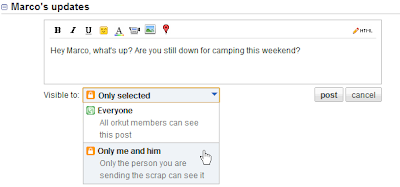
Just send a private scrap to your friends, and just the people you selected will see it. Yep, just them! Recipients can also reply, creating a completely private conversation.
To send a private scrap, simply compose your message and, before posting it, click the drop-down menu named "visible to" and select the option
Every piece of content on orkut (a scrap, photo, video, etc) will be labeled with a privacy level on the top of the post, so you can easily know who else is seeing it or not.
There are three levels of privacy for any shared content:
Visible to all the web means that any orkut user can see the content. So if you add a comment to it, your comment will be publicly visible in your profile page as well.
Visible only to friends means that only the friends of the person who initially posted that content will be able to see it. So if you add a comment to it, your comment will show up in your profile page only for those friends that have access to the original post. Other users simply won’t see anything.
Visible only to selected friends means that only a few users were selected to see the content. If you can see it and you’re not the one who posted it, then the person who did it selected you to see that content. Any comment you add will only be visible in your profile page to those selected friends that are able to see the initial content. Other users simply won’t see anything.
Greasemonkey on Google Chrome
So far, Greasemonkey was only available for Firefox, and there are many scripts for all kinds of tasks, such as Virtual Keyboard Interface, YouTube HQ and many more. No doubt, their arrival on Chrome provides a strong argument for those who still are not decided by one of several (and good) possibilities in the world of browsers.
Speeding up your PC's start-up speed!
To control your computers startup, you can use "Msconfig". It is a program that tells you what’s going on whenever you start Windows.
The reality is quite simple: msconfig allows you to modify how your system starts. When Windows starts, it loads all sorts of things, from a variety of places. If your system is slow or you’re having problems starting at all, it could be because of conflicts between different programs that run when your system starts.
You can correct such a condition by cleaning up the startup files. Using the msconfig utility, you can see a list of what Windows loads and individually select which of those items should load and those it should not!
To start msconfig:
- Choose Start>Run
- In the Open text box, type msconfig.exe and click OK.
- The program is executed and very shortly you see the System Configuration Utility program window.
Notice that there’s no menu bar for the program; everything is handled through a series of tabs. These tabs represent different aspects of how Windows starts on your system.
The tabs on the utility are:
System.ini: This tab shows the contents of the system.ini startup file. The tab doesn’t contain the file text but presents the file contents in a hierarchy.
Win.ini: This tab shows the contents of the win.ini file. A carryover from earlier versions of Windows, this file is used for compatibility with some older programs. Again, the file contents are displayed in a hierarchical manner.
Boot.ini: This tab shows the actual contents of the boot.ini file. This file indicates exactly how your system should boot. On most systems the file is pretty similar, but it becomes critical if you have multiple operating systems or different versions of Windows on the same system.
Services: This tab lists all the services that Windows can start.
Startup: This tab lists all the programs automatically started whenever you begin Windows.
Additional tabs may be present, depending on your system’s configuration. For instance, you may see tabs that contain environment or international settings.
Modifying the startup process
The General tab on the System Configuration Utility dialog box allows you to say, in the most general way, how your system starts. Three options are available on the tab:
Normal Startup: With this default selected, Windows loads all the programs, drivers, and services it was instructed to load.
Diagnostic Startup: This option is, in some respects, similar to starting your computer in safe mode. When you choose this radio button, Windows only loads the most basic services and drivers.
Normally, you choose Diagnostic Startup only to get rid of all the potential problem areas in one move. If your system starts problem-free with Diagnostic Startup selected, you would then move onto Selective Startup to narrow the problem even further.
Selective Startup: This option enables you to make choices regarding which startup files are to be processed. If you deselect one of the check boxes under this option, then the corresponding startup file is skipped when Windows starts.
If you’re experiencing startup problems, follow these steps:
- Choose Start>Run, type "msconfig.exe" in the Open dialog box, and click OK.
- The System Configuration Utility program window appears.
- Deselect all the check boxes under Selective Startup and click OK. The boot.ini option is not a check box; you won’t be able to change it.
- Restart Windows.
- You should have no problem.
- Go back to msconfig, select the first check box (system.ini), and click OK.
- Restart Windows again to see if your problems crop up again. If your problems crop up, you know the problem is in system.ini. If they don’t crop up, then you know system.ini had no problem.
- Repeat the process until you’ve selected all the check boxes one at a time, restarting Windows after each.
- Through this process, you can determine which startup file is causing problems. You won’t yet know which command in the file is causing problems, but you’ll know where to look closer.
Now, the next step is to remove the file that is specifically causing the problems.
Modifying startup files
The hierarchical display shown represents the section of the startup file. The check boxes beside each section name allow you to indicate if you want that section processed when Windows starts. By selectively turning off different sections and restarting Windows, you can determine which section of the startup file may be causing your problems.
If a section name has a plus sign to the left, clicking it displays the contents of that particular section. Again, use check boxes to determine whether Windows should process a command line.
Be very careful when it comes to modifying the boot.ini file. In fact, you should not modify it unless you know absolutely what you’re doing. If you mess up the file, your system won’t boot!! That means you won’t even be able to get back to msconfig to fix it. Be careful!
Modifying what is started
Perhaps the most informative tab in msconfig is Startup. This tab lists programs that automatically run every time you start Windows.
Each startup item has a check box next to it; you can turn off the program next time you start Windows by de-selecting it.
Using msconfig’s Startup tab, you can select which programs should be started when you begin Windows and which should’t. De-select the check box for any programs you don’t want started and then reboot. If problems crop up, you can also go back to msconfig, select the check box, and restart.
If the problems that come up are serious, you can always use the System Restore utility.
That is the end of the guide to the basics of Windows XP cleanup and control. I hope you did like it and find it helpful.
Wishing you better PC health!
200,000 Students a Month: Learning Science and Math on YouTube
Last nigth i am surfing internet and visited a beautiful site named techie-buzz
i am greatly inspired by one beautiful post so i also want to share with technowit readers.
Salman Khan, a man who gave up a successful career in Silicon Valley
Why does Khan do it? He’s not in it for the money. According to a recent interview, Khan said “You know, I think I’ve always enjoyed teaching.”
I believe him. His videos are not the dry lectures you’d expect from a geek. His enthusiasm shines through in the 10 to 20 minute videos.
Here’s a video overview of the academy:
When talking about his teaching style, he says:
I teach the way that I wish I was taught. The lectures are coming from me, an actual human being who is fascinated by the world around him. The concepts are conveyed as they are understood by me, not as they are written in a textbook developed by an educational bureaucracy. Viewers know that it is the labor of love of one somewhat quirky and determined man who has a passion for learning and teaching. I don’t think any corporate or governmental effort–regardless of how much money is thrown at the problem–can reproduce this.
Students all over the world are viewing Khan’s videos and are finding that they are learning previously difficult subjects much more easily now.
To find out more, visit the Khan Academy website.